Day
The Day view.
The Day view is Cumulus's home base. The left column holds Today's Plan — your task list for the day. The middle column is the Rhythm, a 24-hour timeline where you paint time blocks. The right column holds Routines and the Daily Memo.
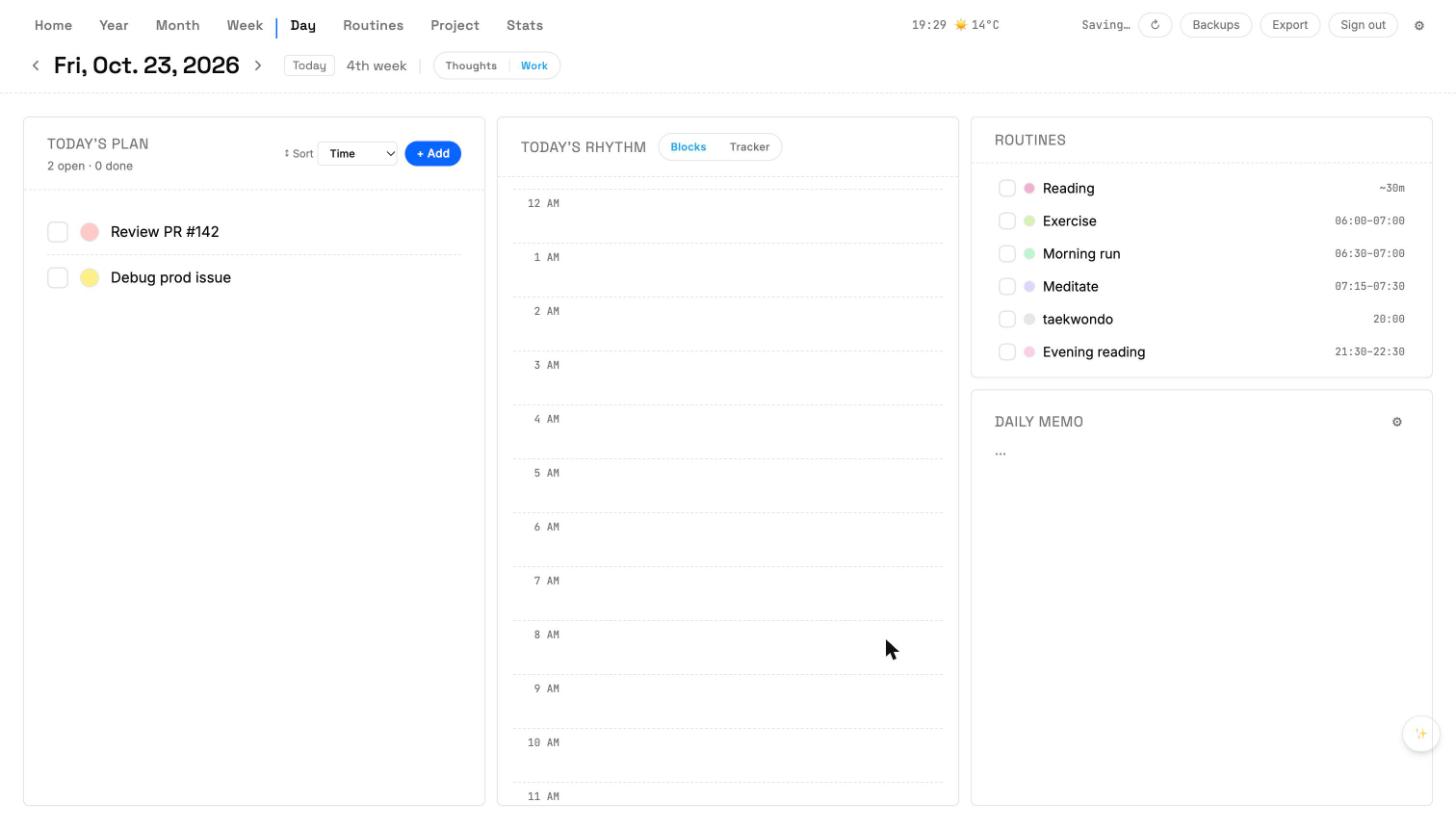
Two tabs: Work and Thoughts
Day view has two tabs. Work is the default: Today's Plan, Rhythm, Routines, Daily Memo. Thoughts covers mood, sleep hours, and a free-form journal — see the Work vs Thoughts help page for details.
Adding a task
- Click the + button at the top of Today's Plan, or press N.
- Type the task title. Press Enter to save; Esc to cancel.
- Optional: pick a category, a project, and a due time.
- The new task appears at the bottom of Today's Plan.
Painting a time block on Rhythm
Drag a task from Today's Plan onto an hour row in the middle Rhythm column. Cumulus creates a block at that hour, color-matched to the task's category. Drag the block's edges to resize it.
Marking a task done
Click the circle at the left of a task to tick it off. The task stays in Today's Plan but shows a strike-through, so you can see the full day at a glance.
Daily Memo
The Daily Memo card at the bottom-right is a free-form notepad for the day. It saves automatically. One memo per day.
Keyboard shortcuts
- N — new task
- T — jump to today
- ← / → — previous / next day
- Esc — close the current dialog