Projects
The Project tracker.
The Project tracker is Cumulus's home for anything bigger than a single task — a product launch, a training plan, a reading list, a renovation. Each project has a progress metric, a timeline, metadata, and nestable sub-projects.
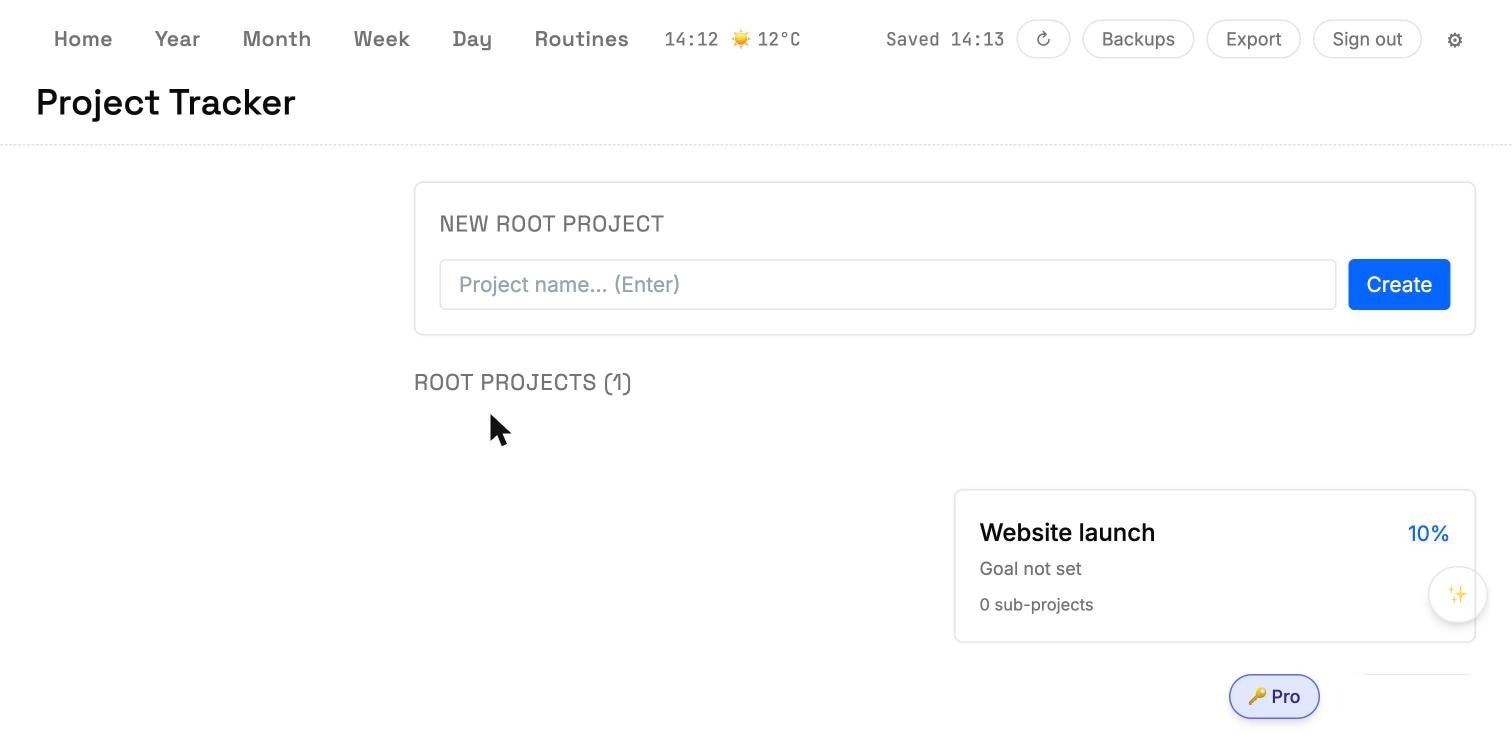
Layout
- Hierarchy sidebar (left) — All roots at the top, then every root project under it with its own progress %.
- Create area (top of main pane) — type a name in New root project and press Enter.
- Root projects grid (main pane) — one card per root project with title, progress %, goal line, and sub-project count.
Creating a project
- From Home, click Project Tracker (or the top-nav Project link).
- Type a name in New root project — for example, Website launch.
- Press Enter. The project is created and Cumulus opens its detail view.
- Click All roots in the sidebar to return to the root list. Your project appears with 0% and 0 sub-projects.
The detail view
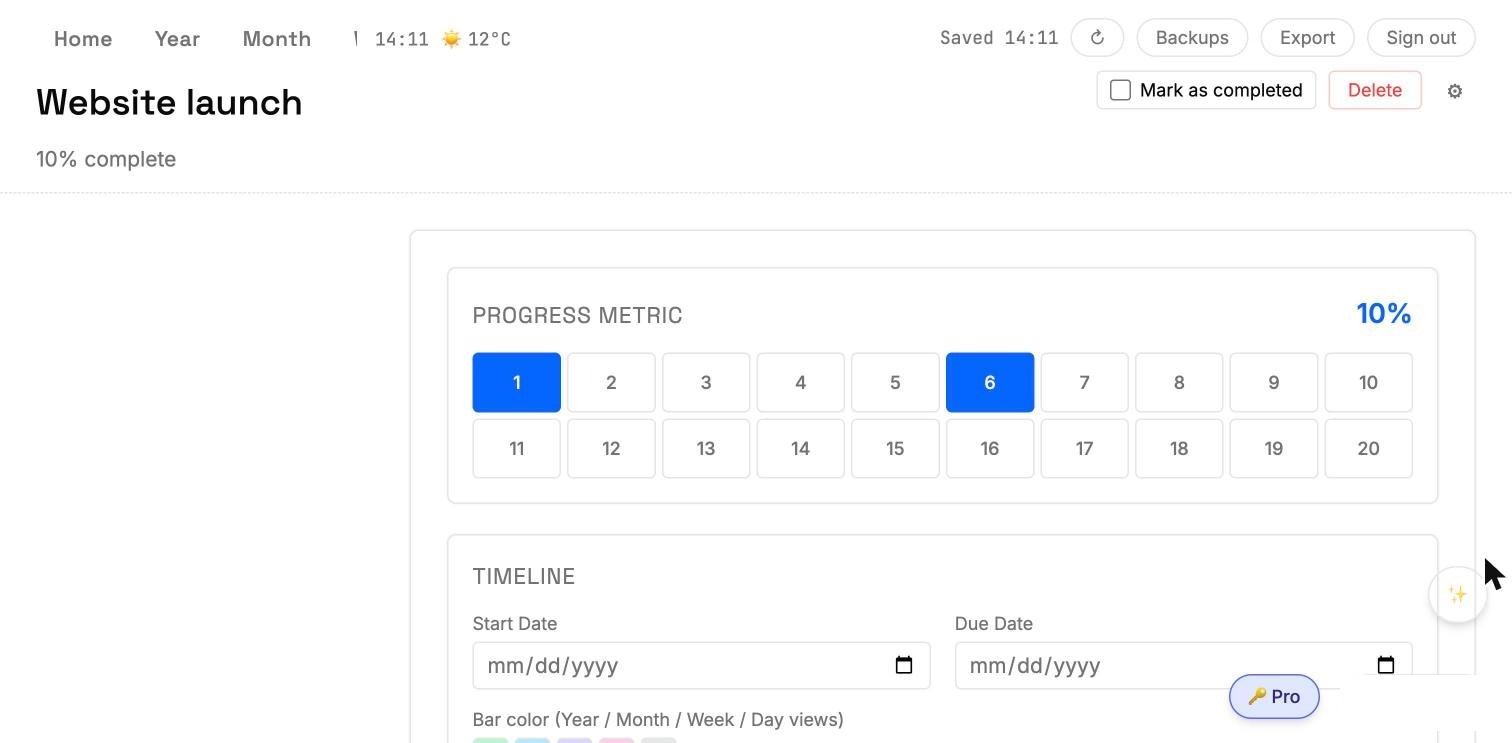
Each project's detail view has five sections, top to bottom:
- Title + progress — overall % complete, computed from the metric and sub-project rollups.
- Progress metric — a row of 20 pills (1-20). Click a pill to mark that milestone complete.
- Timeline — Start Date, Due Date, and a bar color picker. Dates make the project appear as a stripe inside every Day/Week/Month/Year view in the range.
- Core metadata — Project Goal (what done looks like) and Project Description.
- Sub-projects / Tasks — nest smaller work items. Each has its own progress bar; sub-projects can themselves contain sub-projects.
Breaking a project into sub-projects
Say your Website launch project has four work streams: copy, download page, help docs, and a sign-up form.
- Open the project.
- Scroll to Sub-projects / Tasks.
- Type Landing page copy → Enter.
- Type Download page + DMG link → Enter.
- Type Help docs port → Enter.
- Type Beta sign-up form → Enter.
The parent's progress % now reflects the average of its children's progress; completing a sub-project pushes the parent's bar forward.
Re-parenting and deleting
- Drag a sub-project row to reorder it among siblings.
- Drop a row onto another project in the sidebar hierarchy to move it under that parent.
- Hover a row and click the × on the right end to delete. A confirmation prompt appears when the row has children — the whole subtree is removed.
Active-today surfacing
Projects that are active today (scheduled with today inside their date range, and not yet 100% complete) appear on the Day view's Work tab above Today's Plan, so you don't miss them.
Marking complete and deleting the whole project
- Mark as completed (top-right of detail) — moves the project to 100% and hides it from active-today lists; the record stays accessible.
- Delete (top-right of detail) — removes the project. A confirmation prompt appears when it has sub-projects. Deleted projects are soft-marked for 60 days so other devices catch up, then cleaned up.